mirror of
https://github.com/zsviczian/obsidian-excalidraw-plugin.git
synced 2025-08-06 05:46:28 +00:00
 03718bc927
Added Chinese translation for the script index page (es-scripts/readme_CN.md)

Updated the format of language switcher links in both Chinese and English documentation
92 lines
22 KiB
Markdown
92 lines
22 KiB
Markdown
# Excalidraw 脚本引擎脚本库
|
||
|
||
> 此说明当前更新至 `768aebf`。
|
||
|
||
【[English](../../../ea-scripts/README.md) | 简体中文】
|
||
|
||
点击观看介绍视频:
|
||
|
||
[](https://youtu.be/hePJcObHIso)
|
||
|
||
> **警告**
|
||
> 相比视频中展示的方法,现在有更简单的方式来安装/管理脚本
|
||
|
||
查看 [Excalidraw 脚本引擎](../../ExcalidrawScriptsEngine.md) 文档了解更多详情。
|
||
|
||
## 如何在 Obsidian 仓库中安装脚本
|
||
|
||
安装内置脚本的步骤:
|
||
|
||
- 在 Obsidian 中打开一个 Excalidraw 绘图
|
||
- 在面板下拉菜单中选择"安装或更新 Excalidraw 脚本"
|
||
- 点击其中一个可用脚本
|
||
- 点击"安装此脚本"(注意如果脚本已经安装,你会看到更新选项)
|
||
- 重启 Obsidian 使脚本生效
|
||
|
||
注意:默认情况下,脚本会被安装到你仓库中的 `Excalidraw/Scripts/Downloaded` 文件夹
|
||
|
||
<details><summary>手动安装脚本</summary>
|
||
|
||
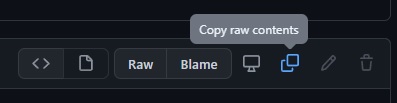
打开你感兴趣的脚本,将其保存到你的 Obsidian 仓库中(包括第一行的 `/*`),或者在"Raw"模式下打开并将全部内容复制到 Obsidian 中。
|
||
|
||
|
||
|
||
</details>
|
||
|
||
## 可用脚本列表
|
||
|
||
|标题|描述|图标|贡献者|
|
||
|----|----|----|----|
|
||
|[添加连接点](../../../ea-scripts/Add%20Connector%20Point.md)|此脚本将在选中文本元素的左上角添加一个小圆圈,并将文本和"圆点"组合成一组。|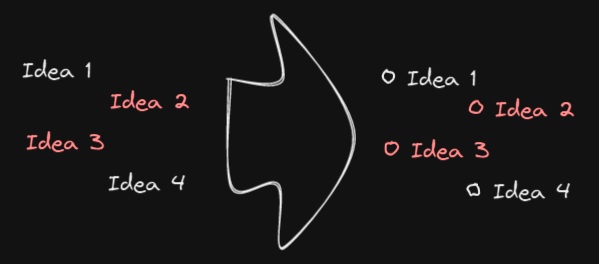|[@zsviczian](https://github.com/zsviczian)|
|
||
|[添加现有文件链接并打开](../../../ea-scripts/Add%20Link%20to%20Existing%20File%20and%20Open.md)|提示从保险库(Vault)中选择文件。为选中的元素添加指向所选文件的链接。你可以在设置中控制是在当前活动面板还是相邻面板中打开文件。|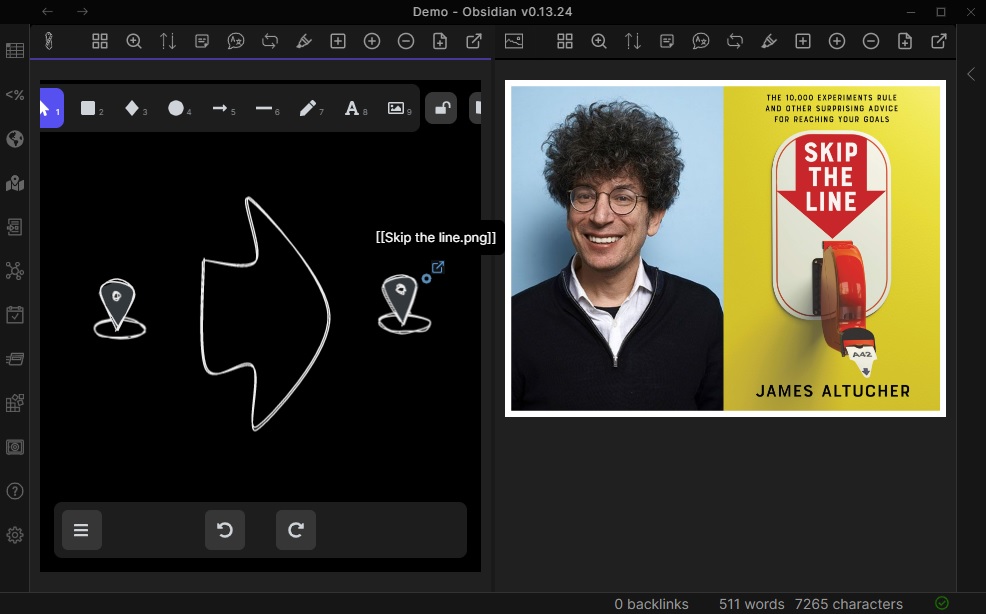|[@zsviczian](https://github.com/zsviczian)|
|
||
|[添加新页面链接并打开](../../../ea-scripts/Add%20Link%20and%20Open%20Page.md)|提示输入文件名。提供创建和打开新的 Markdown 或 Excalidraw 文档的选项。为绘图中选中的对象添加指向新文件的链接。你可以在设置中控制是在当前活动面板或是相邻面板中打开文件。|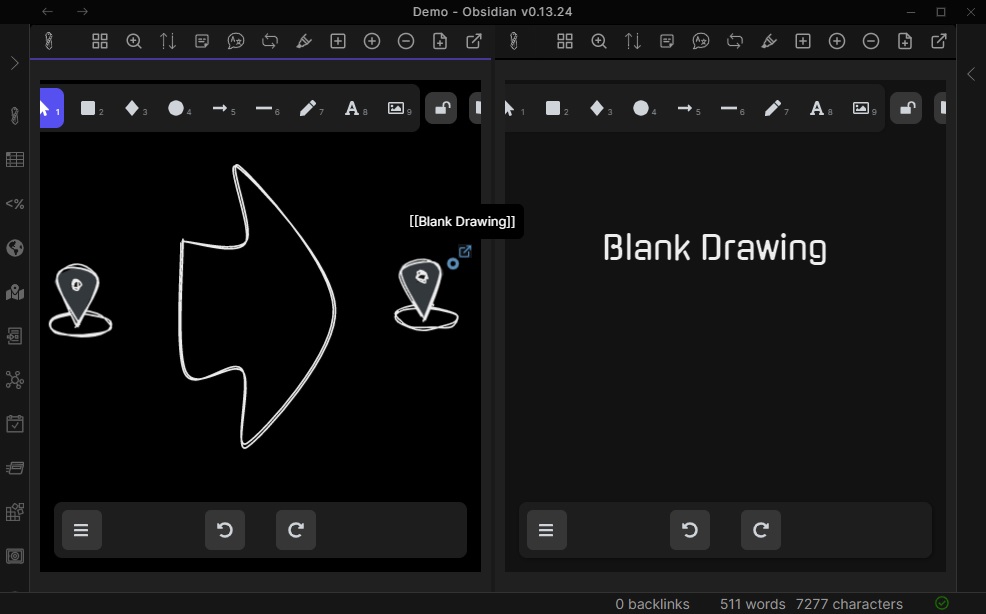|[@zsviczian](https://github.com/zsviczian)|
|
||
|[添加流程下一步](../../../ea-scripts/Add%20Link%20to%20New%20Page%20and%20Open.md)|此脚本将提示你输入流程步骤的标题,然后创建带有该文本的便签。如果选中了某个元素,脚本将用箭头将这个新步骤与上一步骤(选中的元素)连接起来。如果没有选中元素,脚本会假定这是流程的第一步,只会输出带有输入文本的便签。|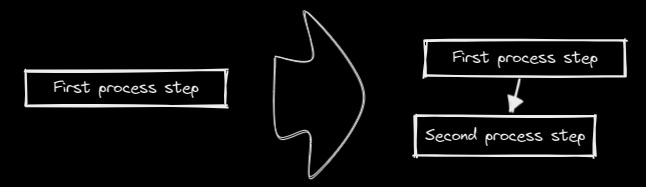|[@zsviczian](https://github.com/zsviczian)|
|
||
|[分割椭圆](../../../ea-scripts/Boolean%20Operations.md)|使用此脚本可以对形状进行布尔运算。|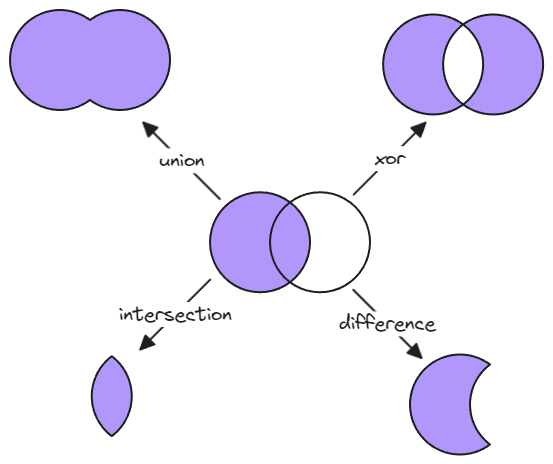|[@GColoy](https://github.com/GColoy)|
|
||
|[为每个选中的组添加边框](../../../ea-scripts/Box%20Each%20Selected%20Groups.md)|此脚本将为 Excalidraw 中当前选中的每个组添加封装框。|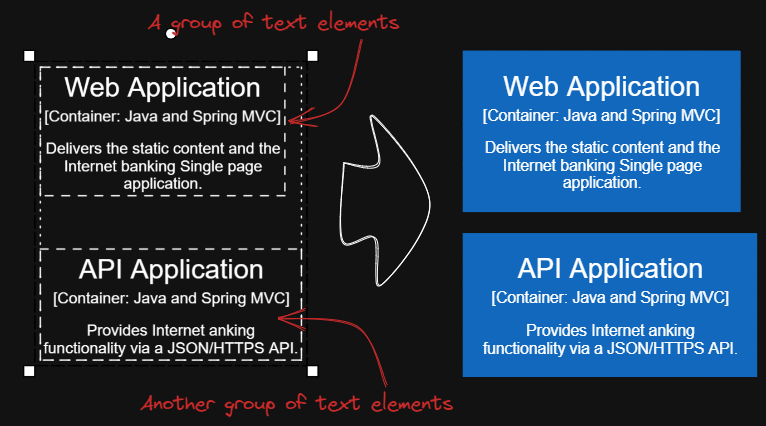|[@1-2-3](https://github.com/1-2-3)|
|
||
|[为选中元素添加边框](../../../ea-scripts/Box%20Selected%20Elements.md)|此脚本将为 Excalidraw 中当前选中的元素添加一个封装框。|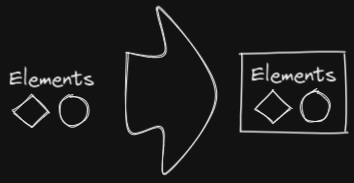|[@zsviczian](https://github.com/zsviczian)|
|
||
|[更改选中元素的形状](../../../ea-scripts/Change%20shape%20of%20selected%20elements.md)|此脚本允许你更改选中的矩形、菱形和椭圆的形状|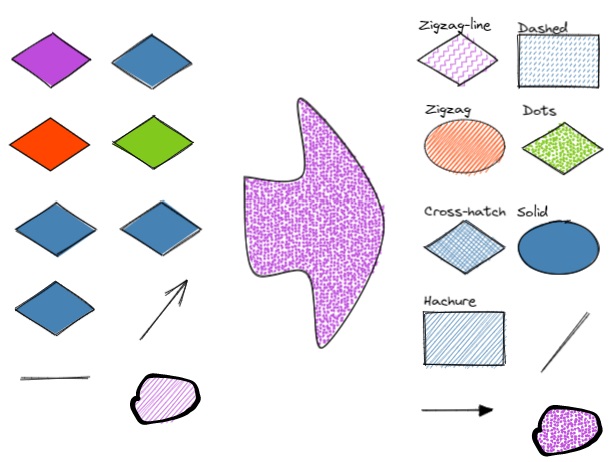|[@zsviczian](https://github.com/zsviczian)|
|
||
|[连接元素](../../../ea-scripts/Connect%20elements.md)|此脚本将用箭头连接两个对象。如果任一对象是一组分组的元素(例如,与封装矩形分组的文本元素),脚本将识别这些组,并将箭头连接到组中最大的对象(假设你想将箭头连接到文本元素周围的框)。|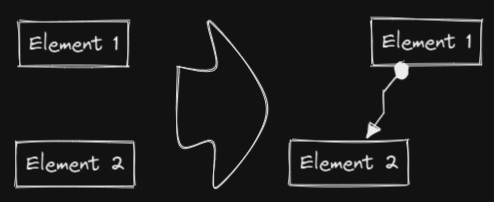|[@zsviczian](https://github.com/zsviczian)|
|
||
|[将自由绘制转换为线条](../../../ea-scripts/Convert%20freedraw%20to%20line.md)|将选中的自由绘制对象转换为可编辑的线条。这样你就可以通过拖动线条点来调整绘图,如果是封闭线条还可以选择形状填充。你可以在设置中调整转换点的密度|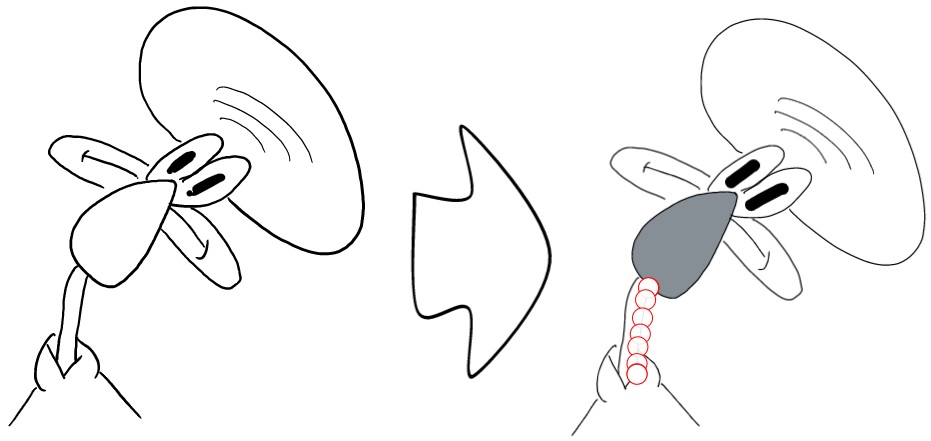|[@zsviczian](https://github.com/zsviczian)|
|
||
|[将选中的文本元素转换为便签](../../../ea-scripts/Convert%20selected%20text%20elements%20to%20sticky%20notes.md)|将选中的纯文本元素转换为具有透明背景和透明描边颜色的便签。本质上是将文本元素转换为可换行的格式。|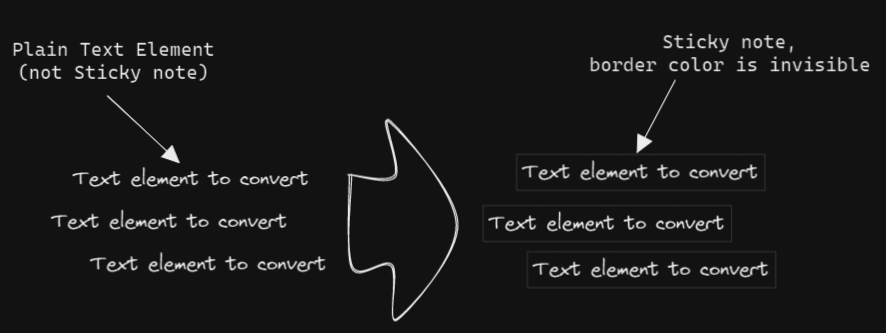|[@zsviczian](https://github.com/zsviczian)|
|
||
|[将文本转换为带文件夹和别名的链接](../../../ea-scripts/Convert%20text%20to%20link%20with%20folder%20and%20alias.md)|将文本元素转换为指向所选文件夹中文件的链接,并将原始文本设置为别名。脚本会提示用户从保险库(Vault)中选择一个现有文件夹。|`原始文本` => `[[选定文件夹/原始文本\|原始文本]]`|[@zsviczian](https://github.com/zsviczian)|
|
||
|[将选中元素样式复制到全局](../../../ea-scripts/Copy%20Selected%20Element%20Styles%20to%20Global)|此脚本会将任何选中元素的样式复制到 Excalidraw 的全局样式中。|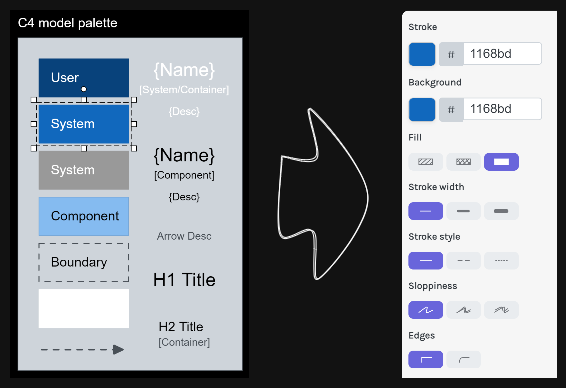|[@1-2-3](https://github.com/1-2-3)|
|
||
|[创建新的 Markdown 文件并嵌入到当前绘图中](../../../ea-scripts/Create%20new%20markdown%20file%20and%20embed%20into%20active%20drawing.md)|此脚本会提示你输入文件名,然后创建一个具有该文件名的新 Markdown 文档,在相邻面板中打开新的 Markdown 文档,并将该 Markdown 文档嵌入到当前的 Excalidraw 绘图中。|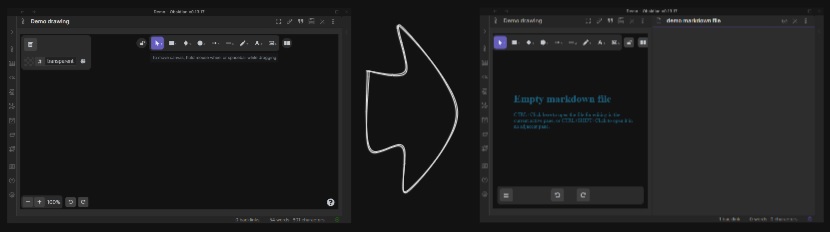|[@zsviczian](https://github.com/zsviczian)|
|
||
|[加深背景颜色](../../../ea-scripts/Darken%20background%20color.md)|此脚本每次将选中元素的背景颜色加深 2%。你可以多次使用此脚本直到满意为止。建议为此脚本设置快捷键,这样你就可以快速尝试加深和减淡颜色效果。与"修改背景颜色不透明度"脚本相比,其优点是元素的背景颜色不受画布颜色影响,并且颜色值不会以奇怪的 rgba() 形式出现。|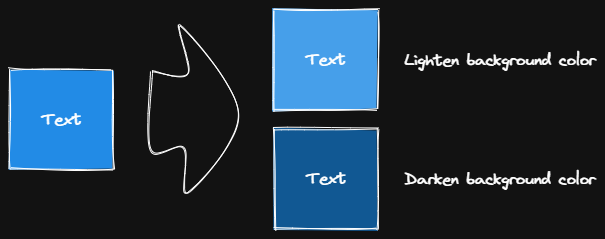|[@1-2-3](https://github.com/1-2-3)|
|
||
|[肘形连接器](../../../ea-scripts/Elbow%20connectors.md)|此脚本将选中的连接器转换为肘形。|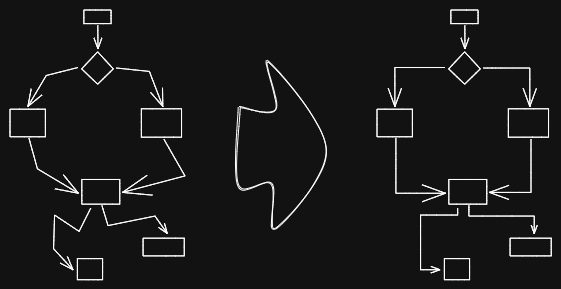|[@1-2-3](https://github.com/1-2-3)|
|
||
|[水平扩展矩形并保持文本居中](../../../ea-scripts/Expand%20rectangles%20horizontally%20keep%20text20%centered.md)|此脚本会扩展选中矩形的宽度,直到它们都具有相同的宽度,并保持文本居中。|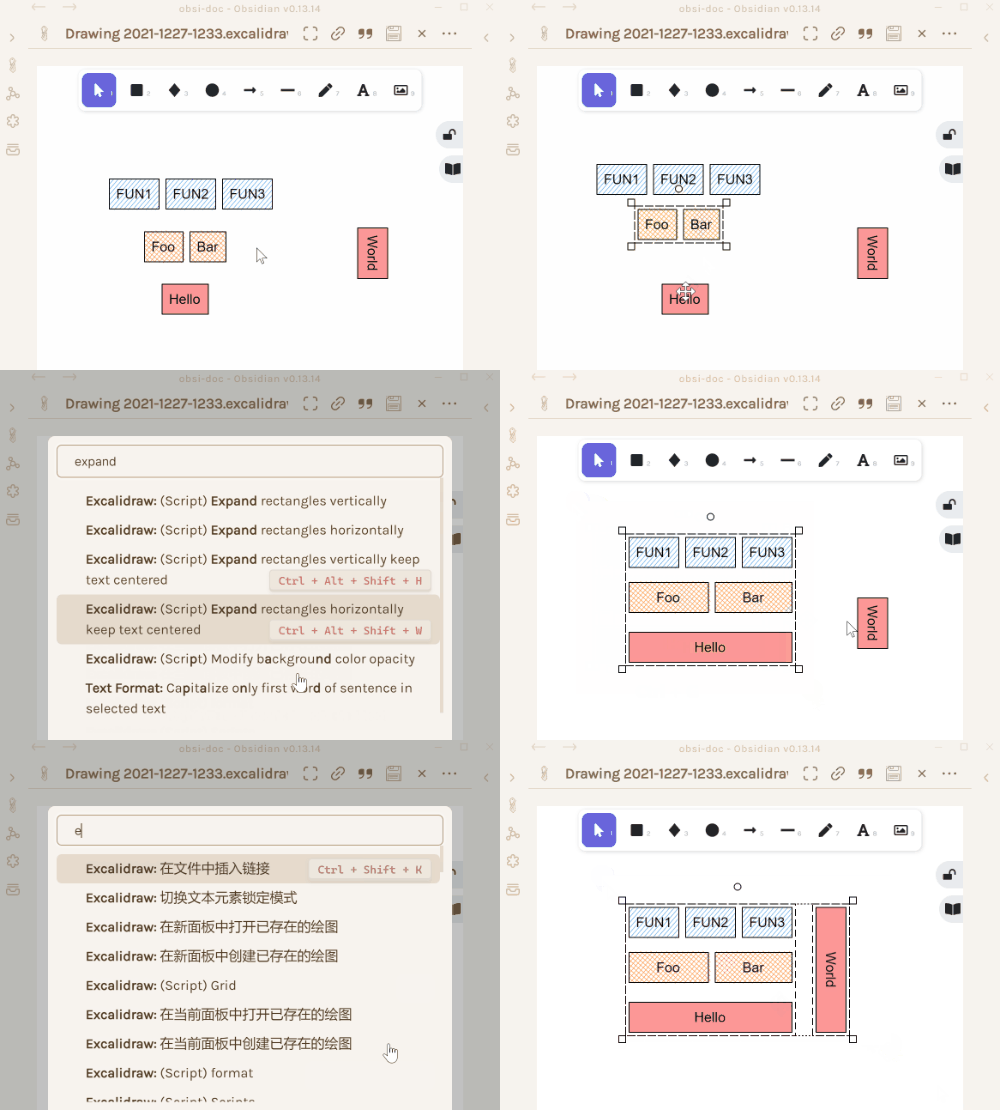|[@1-2-3](https://github.com/1-2-3)|
|
||
|[水平扩展矩形](../../../ea-scripts/Expand%20rectangles%20horizontally.md)|此脚本会扩展选中矩形的宽度,直到它们都具有相同的宽度。||[@1-2-3](https://github.com/1-2-3)|
|
||
|[垂直扩展矩形并保持文本居中](../../../ea-scripts/Expand%20rectangles%20vertically%20keep%20text%20centered.md)|此脚本会扩展选中矩形的高度,直到它们都具有相同的高度,并保持文本居中。||[@1-2-3](https://github.com/1-2-3)|
|
||
|[垂直扩展矩形](../../../ea-scripts/Expand%20rectangles%20vertically.md)|此脚本会扩展选中矩形的高度,直到它们都具有相同的高度。||[@1-2-3](https://github.com/1-2-3)|
|
||
|[固定中心点水平距离](../../../ea-scripts/Fixed%20horizontal%20distance%20between%20centers.md)|此脚本会以固定的中心点间距水平排列选中的元素。|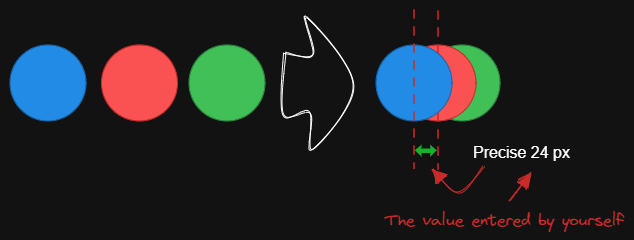|[@1-2-3](https://github.com/1-2-3)|
|
||
|[固定内部距离](../../../ea-scripts/Fixed%20inner%20distance.md)|此脚本会以固定的内部距离排列选中的元素和组。||[@1-2-3](https://github.com/1-2-3)|
|
||
|[固定间距](../../../ea-scripts/Fixed%20spacing.md)|此脚本会以固定的间距水平排列选中的元素。当我们创建架构图或思维导图时,经常需要以固定间距排列大量元素。"固定间距"和"固定垂直距离"脚本可以为我们节省大量时间。|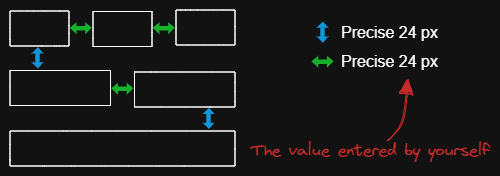|[@1-2-3](https://github.com/1-2-3)|
|
||
|[固定中心点垂直距离](../../../ea-scripts/Fixed%20vertical%20distance%20between%20centers.md)|此脚本会以固定的中心点间距垂直排列选中的元素。|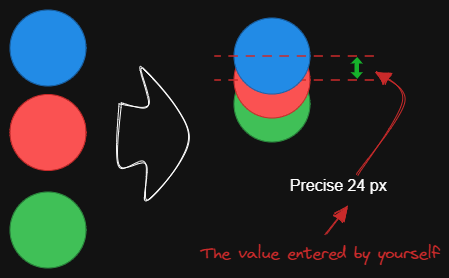|[@1-2-3](https://github.com/1-2-3)|
|
||
|[固定垂直距离](../../../ea-scripts/Fixed%20vertical%20distance.md)|此脚本会以固定间距垂直排列选中的元素。当我们创建架构图或思维导图时,经常需要以固定间距排列大量元素。`固定间距`和`固定垂直距离`脚本可以为我们节省大量时间。|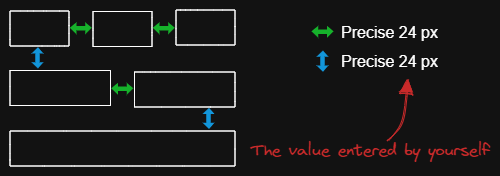|[@1-2-3](https://github.com/1-2-3)|
|
||
|[减淡背景颜色](../../../ea-scripts/Lighten%20background%20color.md)|此脚本每次将选中元素的背景颜色减淡 2%。你可以多次使用此脚本直到满意为止。建议为此脚本设置快捷键,这样你就可以快速尝试加深和减淡颜色效果。与"修改背景颜色不透明度"脚本相比,其优点是元素的背景颜色不受画布颜色影响,并且颜色值不会以奇怪的 rgba() 形式出现。||[@1-2-3](https://github.com/1-2-3)|
|
||
|[思维导图连接器](../../../ea-scripts/Mindmap%20connector.md)|此脚本为选中的元素创建类似思维导图的连线(目前仅支持右侧和向下方向)。连线的起点将根据元素的创建时间确定。因此你应该先创建标题元素。|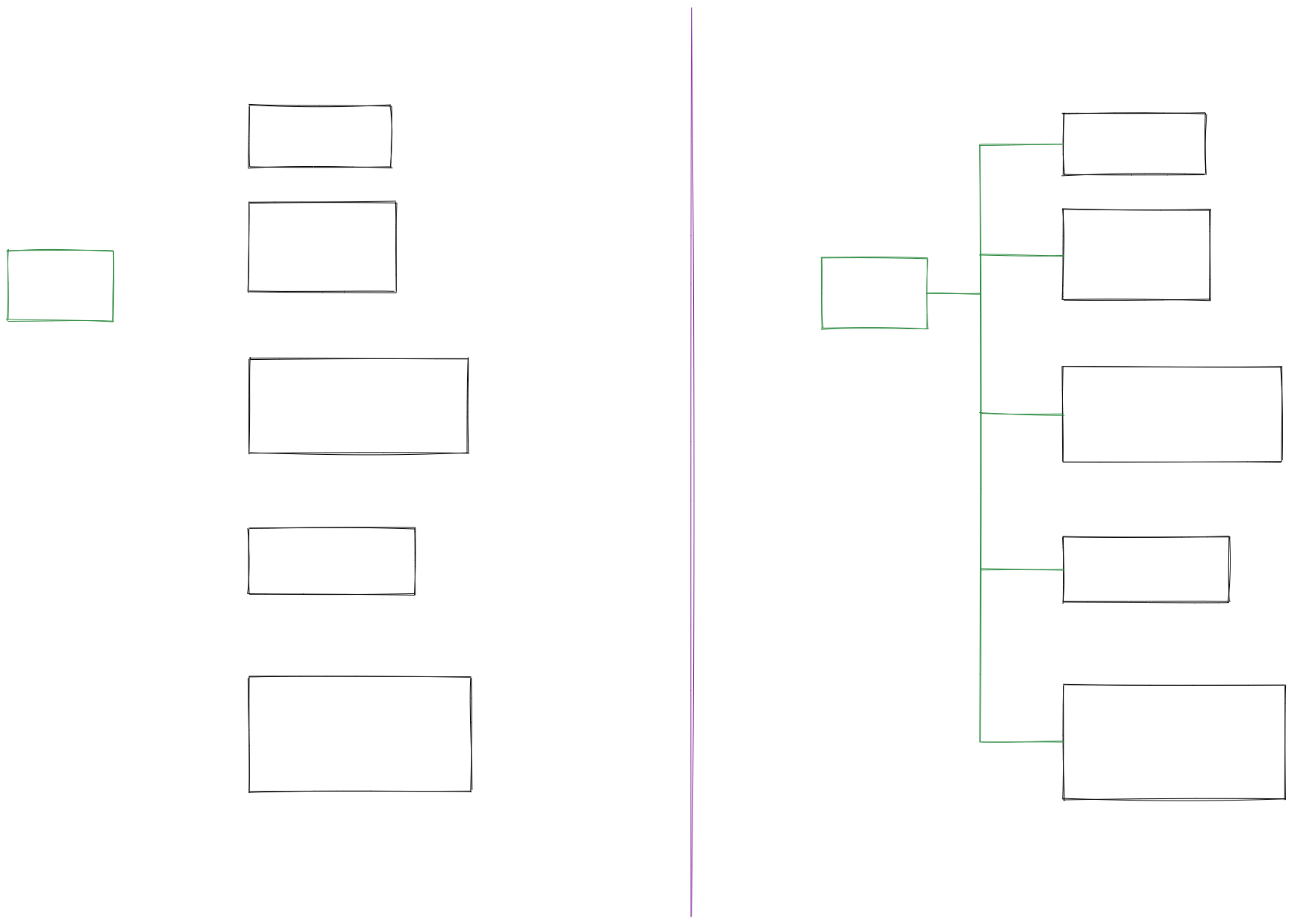|[@xllowl](https://github.com/xllowl)|
|
||
|[修改背景颜色不透明度](../../../ea-scripts/Modify%20background%20color%20opacity.md)|此脚本会更改选中框的背景颜色不透明度。Excalidraw 中的默认背景颜色太深,导致文字难以阅读。你可以通过设置透明度来使颜色变浅。你可以反复调整透明度直到满意为止。虽然 Excalidraw 在其原生属性设置中有不透明度选项,但它也会改变边框的透明度。使用此脚本可以只更改背景颜色的不透明度而不影响边框。|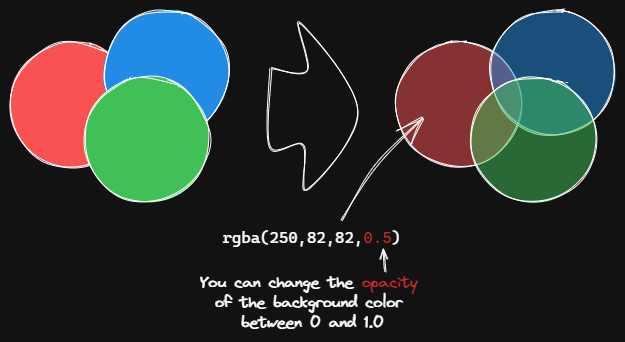|[@1-2-3](https://github.com/1-2-3)|
|
||
|[标准化选中箭头](../../../ea-scripts/Normalize%20Selected%20Arrows.md)|此脚本将重置选中箭头的起点和终点位置。箭头将指向连接框的中心,并与框保持 8px 的间距。|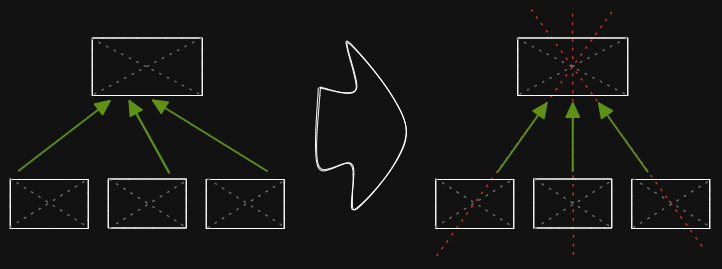|[@1-2-3](https://github.com/1-2-3)|
|
||
|[OCR - 光学字符识别](../../../ea-scripts/OCR%20-%20Optical%20Character%20Recognition.md)|此脚本将 1) 把选中的图片文件发送到 [taskbone.com](https://taskbone.com) 提取图片中的文字,并 2) 将文字作为文本元素添加到你的绘图中。|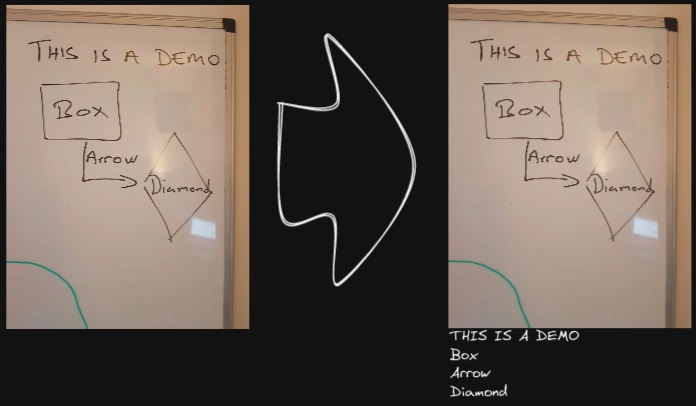|[@zsviczian](https://github.com/zsviczian)|
|
||
|[有机线条](../../../ea-scripts/Organic%20Line.md)|将选中的自由绘制线条转换为从开始到结束笔压逐渐减小的线条。转换后的线条会被放置在图层的最底层,位于所有其他元素之下。在绘制有机思维导图时很有帮助。|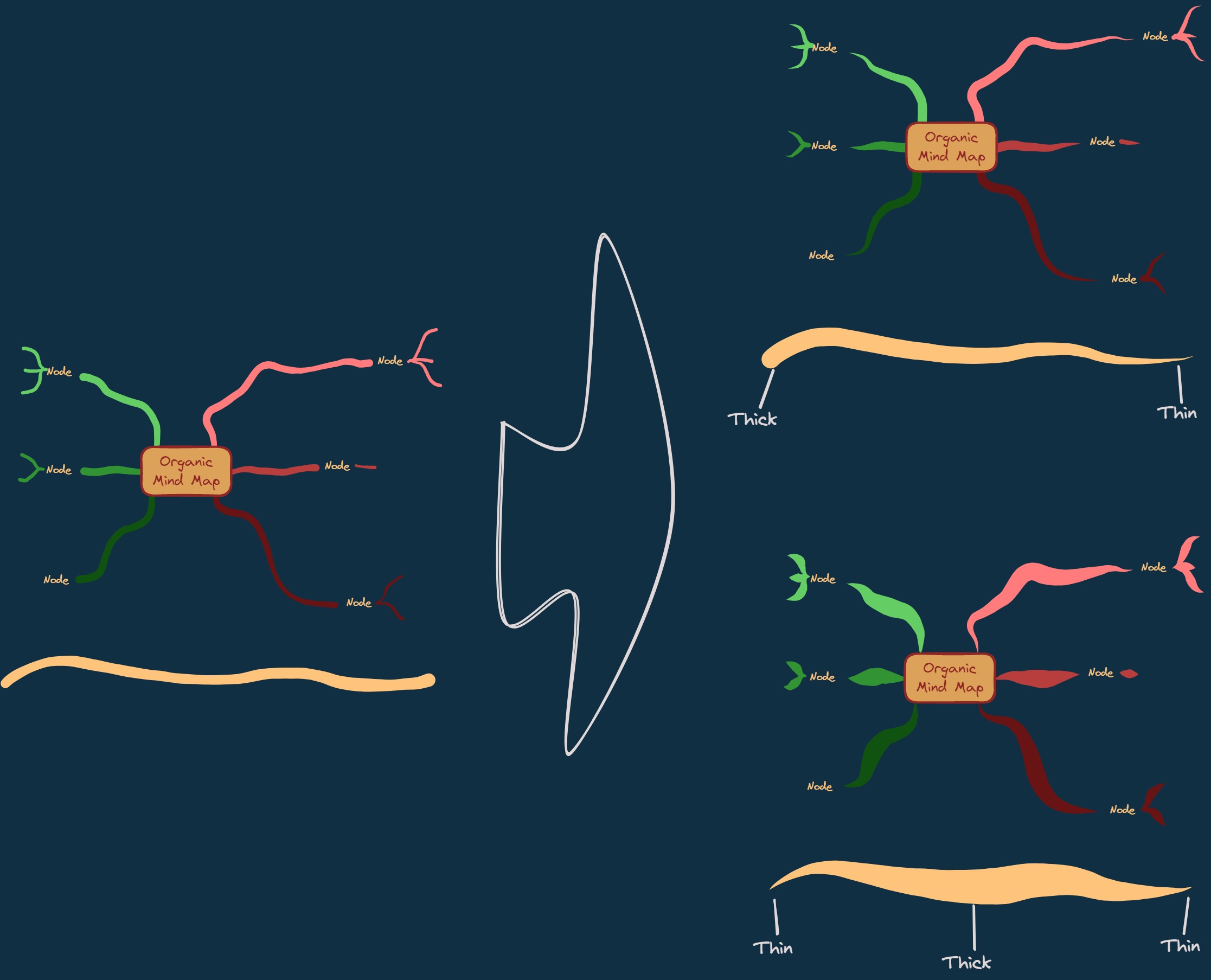|[@zsviczian](https://github.com/zsviczian)|
|
||
|[重复元素](../../../ea-scripts/Repeat%20Elements.md)|此脚本会检测两个选中元素之间的差异,包括位置、大小、角度、描边和背景颜色,并根据用户输入的重复次数创建多个具有相同差异的元素。|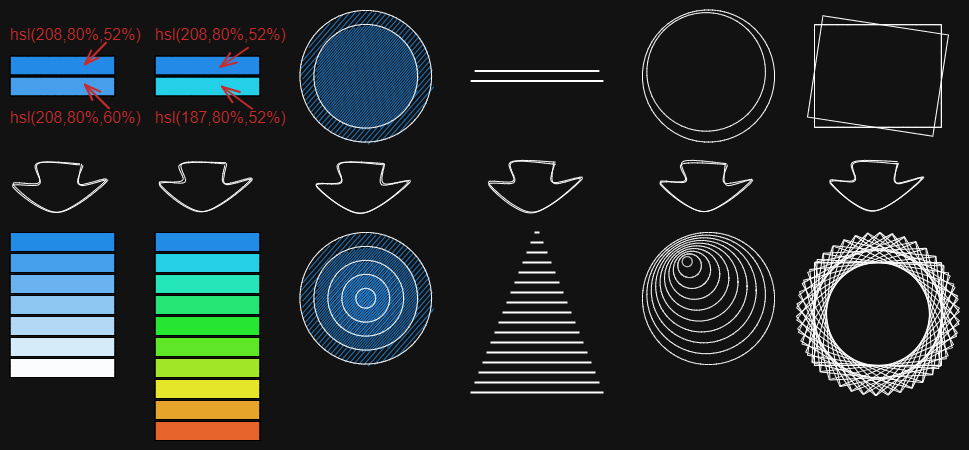|[@1-2-3](https://github.com/1-2-3)|
|
||
|[重置 LaTeX 大小](../../../ea-scripts/Reset%20LaTeX%20Size.md)|将嵌入的 LaTeX 公式大小重置为默认大小或默认大小的倍数。|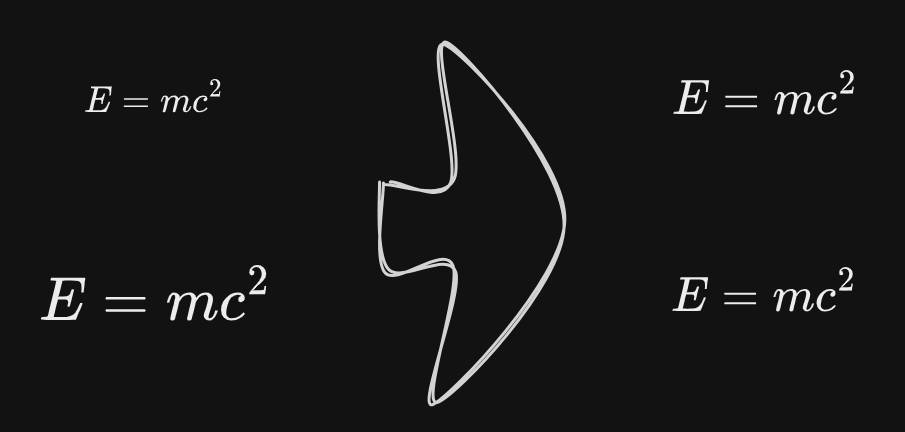|[@firai](https://github.com/firai)|
|
||
|[反转箭头](../../../ea-scripts/Reverse%20arrows.md)|反转选中元素范围内的**箭头**方向。|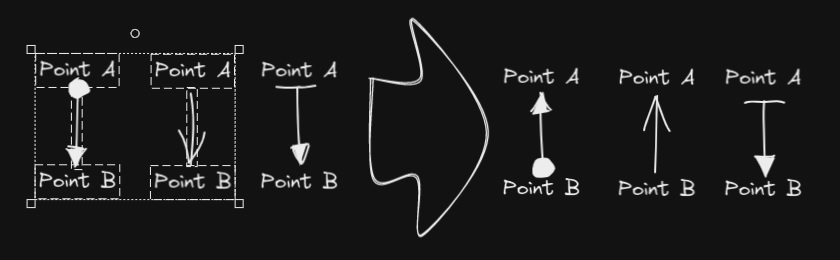|[@zsviczian](https://github.com/zsviczian)|
|
||
|[手写助手](../../../ea-scripts/Scribble%20Helper.md)|iOS 手写助手,用于改善文本元素的手写体验。如果没有选中元素,则会在指针位置创建一个文本元素,你可以使用编辑框通过手写来修改文本。如果选中了文本元素,则会打开输入提示框,你可以在其中通过手写修改文本。||[@zsviczian](https://github.com/zsviczian)|
|
||
|[选择特定类型元素](../../../ea-scripts/Select%20Elements%20of%20Type.md)|显示当前图像中不同元素类型的列表供选择。只有选定类型的元素会在画布上被选中。如果运行脚本时没有选中任何元素,则脚本会处理画布上的所有元素。如果执行脚本时已选中某些元素,则脚本只会处理这些选中的元素。<br>此脚本在以下情况下很有用,例如,当你想要将所有箭头置于顶层,或想要更改所有文本元素的颜色等。||[@zsviczian](https://github.com/zsviczian)|
|
||
|[通过添加阴影克隆为未闭合线条对象设置背景颜色](../../../ea-scripts/Set%20background%20color%20of%20unclosed%20line%20object%20by%20adding%20a%20shadow%20clone.md)|使用此脚本为未闭合(即开放)线条对象设置背景颜色,方法是创建对象的克隆。脚本会将克隆的描边颜色设置为透明,并添加一条直线来闭合对象。使用设置来定义默认背景颜色、填充样式和克隆的描边宽度。默认情况下,克隆会与原始对象组合在一起,你也可以在设置中禁用此功能。|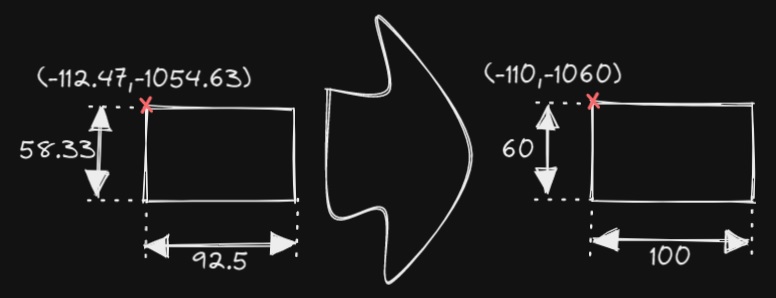|[@zsviczian](https://github.com/zsviczian)|
|
||
|[设置尺寸](../../../ea-scripts/Set%20Dimensions.md)|目前在 Excalidraw 中无法指定对象的确切位置和大小。你可以使用这个简单的脚本来弥补这个不足。||[@zsviczian](https://github.com/zsviczian)|
|
||
|[设置字体](../../../ea-scripts/Set%20Font%20Family.md)|设置文本块的字体(Virgil、Helvetica、Cascadia)。如果你想为选择字体设置键盘快捷键,这个脚本很有用。|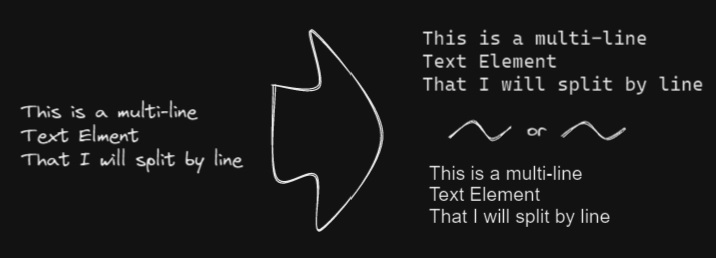|[@zsviczian](https://github.com/zsviczian)|
|
||
|[设置网格](../../../ea-scripts/Set%20Grid.md)|Excalidraw 中的默认网格大小是 20。目前无法通过用户界面更改网格大小。这个脚本提供了一种方法来弥补这个不足。|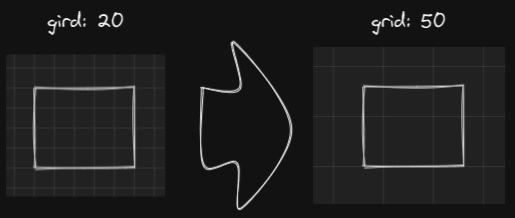|[@zsviczian](https://github.com/zsviczian)|
|
||
|[设置链接别名](../../../ea-scripts/Set20%Link20%Alias.md)|遍历选中文本元素中的所有链接,并提示用户为每个找到的链接设置或修改别名。|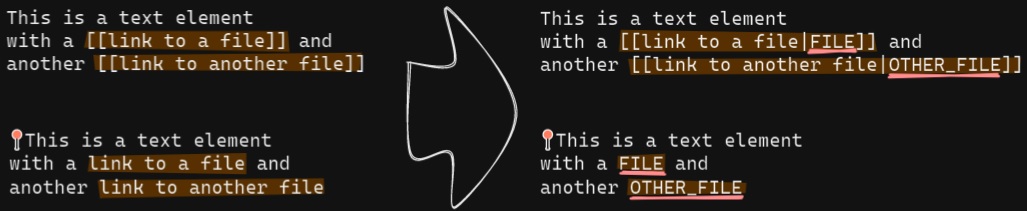|[@zsviczian](https://github.com/zsviczian)|
|
||
|[设置选中元素的描边宽度](../../../ea-scripts/Set%20Stroke%20Width%20of%20Selected%20Elements.md)|此脚本将设置选中元素的描边宽度。这在缩放自由绘制草图并想要减小或增加其线条宽度时很有用。|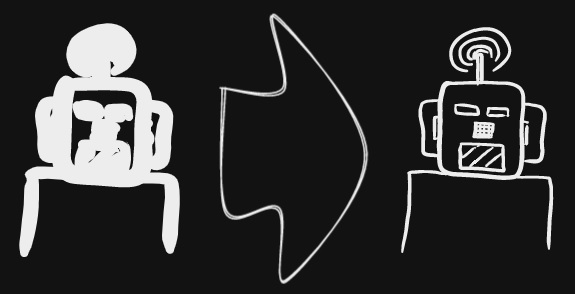|[@zsviczian](https://github.com/zsviczian)|
|
||
|[按行分割文本](../../../ea-scripts/Split%20text%20by%20lines.md)|将文本行分割成单独的文本元素,以便更容易重新组织|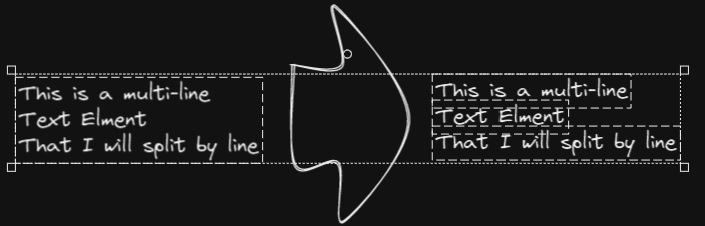|[@zsviczian](https://github.com/zsviczian)|
|
||
|[设置文本对齐方式](../../../ea-scripts/Set%20Text%20Alignment.md)|设置文本块的对齐方式(居中、右对齐、左对齐)。如果你想为选择文本对齐方式设置键盘快捷键,这个脚本很有用。|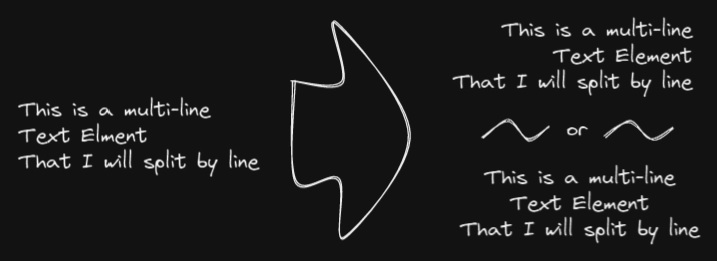|[@zsviczian](https://github.com/zsviczian)|
|
||
|[分割椭圆](../../../ea-scripts/Split%20Ellipse.md)|此脚本会在线条与椭圆相交的任何点处分割椭圆。|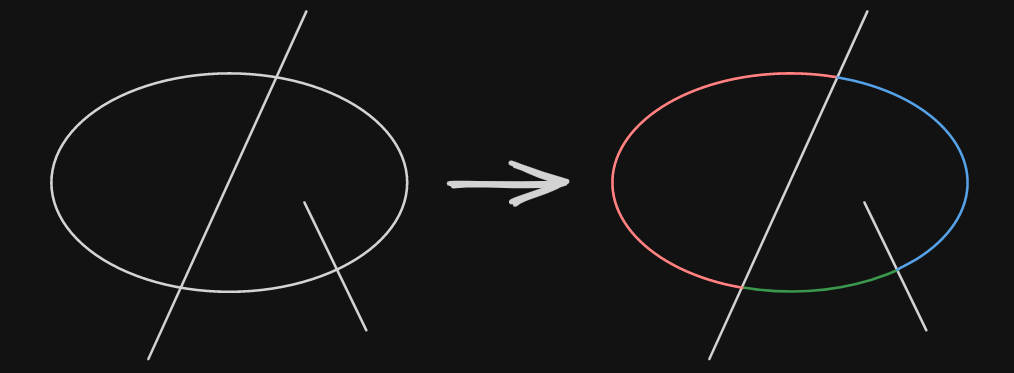|[@GColoy](https://github.com/GColoy)|
|
||
|[TheBrain导航](../../../ea-scripts/TheBrain-navigation.md)|基于Excalidraw的保险库(Vault)图形用户界面。需要[Dataview插件](https://github.com/blacksmithgu/obsidian-dataview)。生成类似于[TheBrain](https://TheBrain.com)的图形视图。在[YouTube](https://youtu.be/plYobK-VufM)上观看此脚本的介绍。|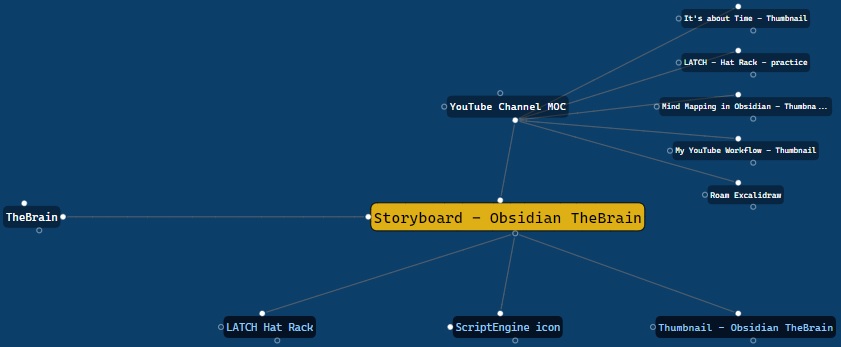|[@zsviczian](https://github.com/zsviczian)|
|
||
|[移动端切换全屏](../../../ea-scripts/Toggle%20Fullscreen%20on%20Mobile.md)|隐藏Obsidian工作区叶片填充和标题(基于设置中的选项,默认"隐藏标题"=false),这将使Excalidraw全屏显示。⚠ 注意,如果标题不可见,将很难调用命令面板来结束全屏。只有在你有键盘或已经练习过打开命令面板的情况下才隐藏标题!|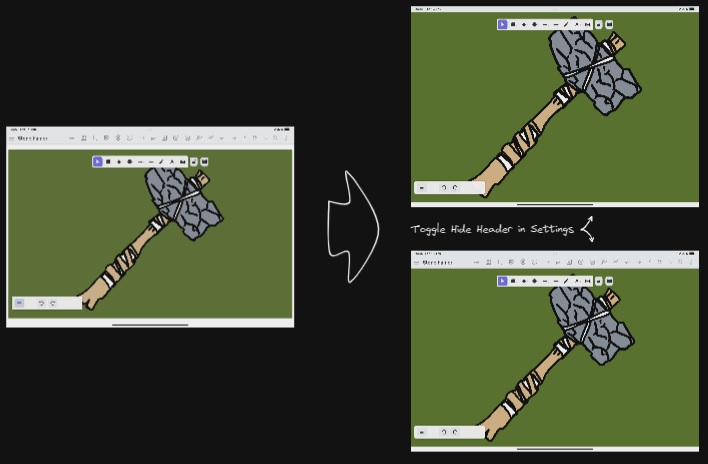|[@zsviczian](https://github.com/zsviczian)|
|
||
|[切换网格](../../../ea-scripts/Toggle%20Grid.md)|切换网格的显示与隐藏。||[@GColoy](https://github.com/GColoy)|
|
||
|[将文本元素转移到Excalidraw markdown元数据](../../../ea-scripts/Transfer%20TextElements%20to%20Excalidraw%20markdown%20metadata.md)|此脚本将从画布中删除选中的文本元素,并将这些文本元素中的文本复制到Excalidraw markdown文件的元数据中。这意味着,文本将不再在绘图中可见,但你可以在Obsidian中搜索文本并找到包含此图像的绘图。|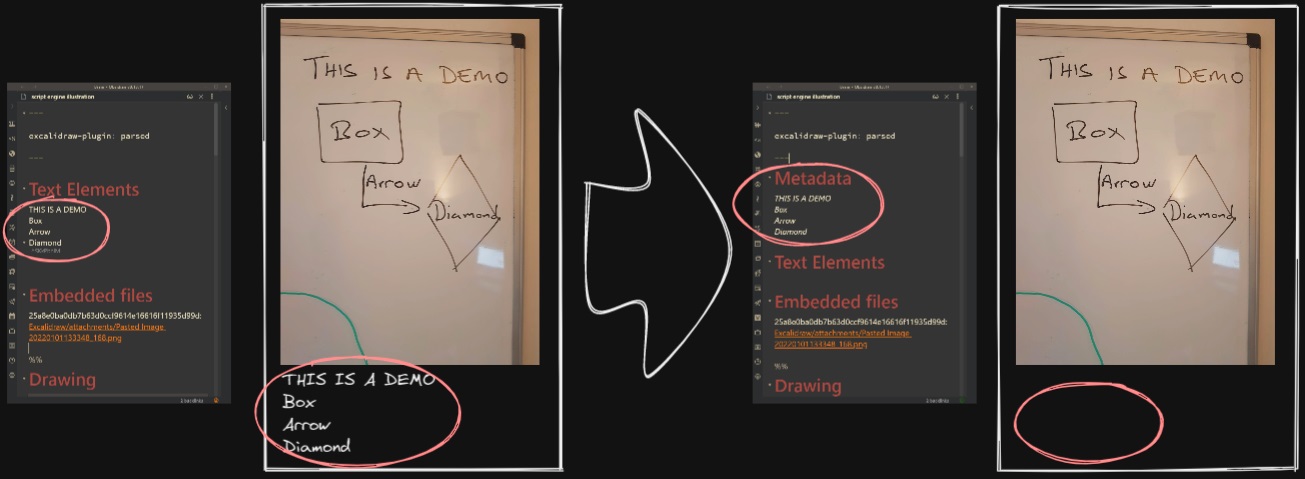|[@zsviczian](https://github.com/zsviczian)|
|
||
|[缩放以适应选中元素](../../../ea-scripts/Zoom%20to%20Fit%20Selected%20Elements.md)|类似于Excalidraw标准的<kbd>SHIFT+2</kbd>功能:缩放以适应选中元素,但可以缩放到1000%。灵感来源:[#272](https://github.com/zsviczian/obsidian-excalidraw-plugin/issues/272)||[@zsviczian](https://github.com/zsviczian)|
|
||
|[硬件橡皮擦支持](../../../ea-scripts/Hardware%20Eraser%20Support.md)|允许在支持的笔上使用笔反转/硬件橡皮擦。|[@threethan](https://github.com/threethan)|
|
||
|[笔的自动绘制](../../../ea-scripts/Auto%20Draw%20for%20Pen.md)|当悬停笔时自动从选择工具切换到绘制工具,然后再切换回来。|[@threethan](https://github.com/threethan)|
|