
The Obsidian-Excalidraw plugin integrates Excalidraw, a feature rich sketching tool, into Obsidian. You can store and edit Excalidraw files in your vault and you can transclude drawings into your documents. For a showcase of Excalidraw features, please read my blog post here and/or watch the videos below.
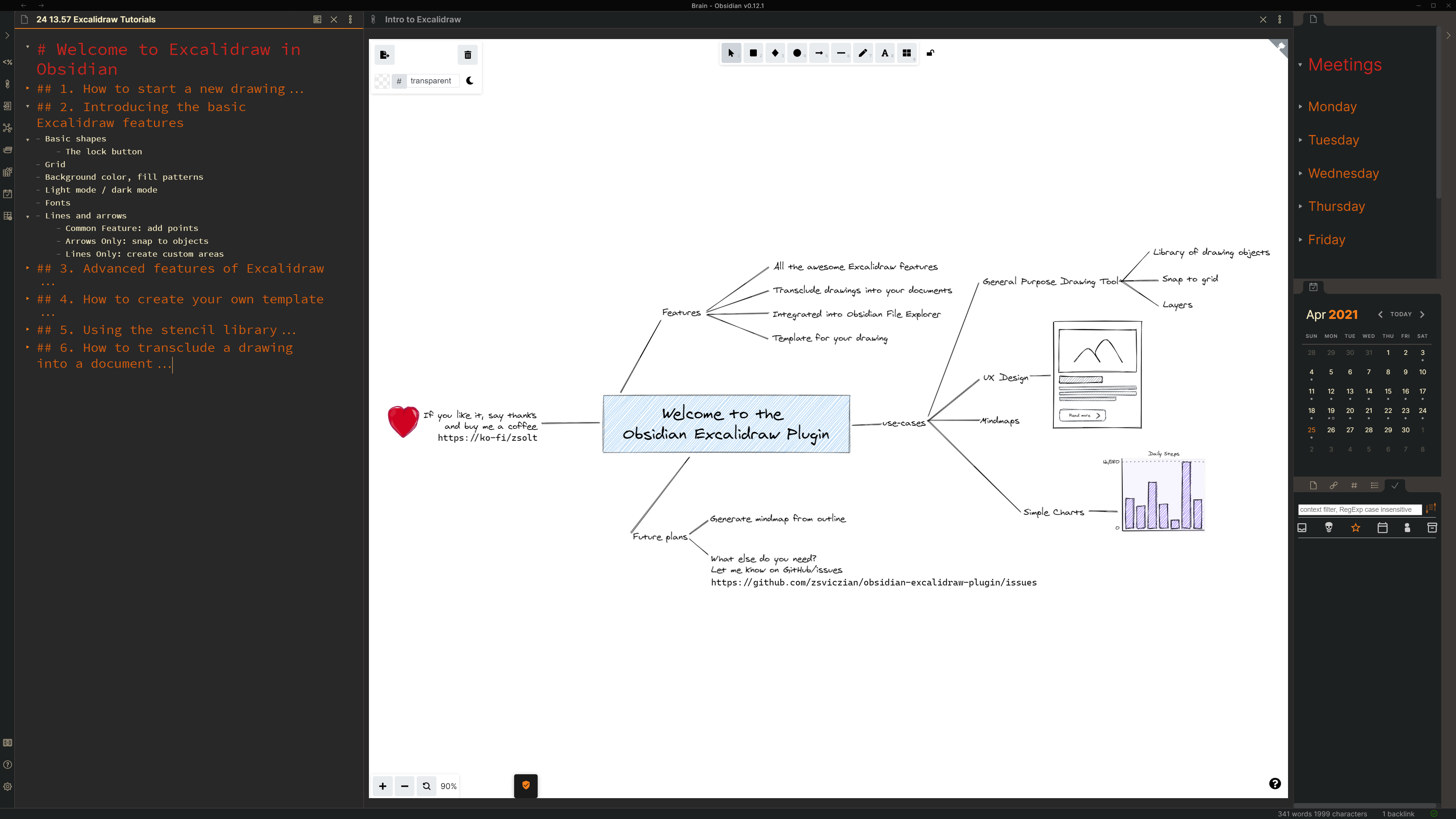
Important notice to the 1.1.x update!
Thank you for updating to Excalidraw 1.1.x!
I have improved how drawings are embedded! You no longer need an Excalidraw codeblock. You can now embed drawings just like any other images: ![[my drawing.excalidraw]] or ![[my drawing.excalidraw|500|left]] or ![[my drawing.excalidraw|right-wrap]], , , etc. You get the idea.
Detailed release notes are under the How to videos.
Key features
- The plugin saves drawings to your vault as a file with the .excalidraw file extension.
- The plugin adds the following actions to the command palette:
- Create a new drawing
- Find and edit existing drawings in your vault,
- Transclude (embed) a drawing into a document, and
- Export a drawing as PNG or SVG.
- Insert vault internal-link into drawing
- You can also use the file explorer in your vault to open existing Excalidraw files.
- Use the ribbon button to create a new drawing, CTRL+Click to open on a new page.
- Open settings to set up
- a default folder for new drawings,
- a Template by first creating a drawing, customizing it the way you like it, and specifying the file as the template in settings,
- Excalidraw to automatically export SVG and/or PNG files for your drawings, and to keep those in sync with your drawing,
- default width of embedded drawings
- You can also customize the size and position of the embedded image using the
[[image.excalidraw|100]],[[image.excalidraw|100x100]],[[image.excalidraw|100|left]],[[image.excalidraw|right-wrap]], formatting options.[[<filename.excalidraw>|<width>x<height>|<alignment>]]. You can add your custom alignment via css. Any text that appears in<alignment>will be added as style to the SVG element and the wrapper DIV element. Check below and styles.css for more insight. - Supports hyperlinks e.g.
https://zsolt.blogand internal links e.g.[[My file in vault]]in drawing text. Ctrl/meta + click on a text element.- Square brackets can be omitted if the entire text element is an internal link. i.e. the following two text elements
Check out the [[requirements specification]]!!andrequirements specificationwill both represent a link torequirements specification.md. - When files are moved/renamed in your vault, text elements that are recognized links will also get updated. Check corresponding setting.
- Square brackets can be omitted if the entire text element is an internal link. i.e. the following two text elements
- Includes full Templater and Dataview support through ExcalidrawAutomate. Read detailed help + examples: here
- REQUIRES AN OBSIDIAN SYNC SUBSCRIPTION: Temporary hack/workaround to enable Obsidian Sync for Excalidraw files. This enables almost real-time two-way sync for Excalidraw files between your devices. You can draw on your iPad with your pencil, on your Android with your stylus, and the image will be available in Obsidian on your desktop as well and vice versa.
How to?
Part 1: Intro to Obsidian-Excalidraw - Start a new drawing (3:12)
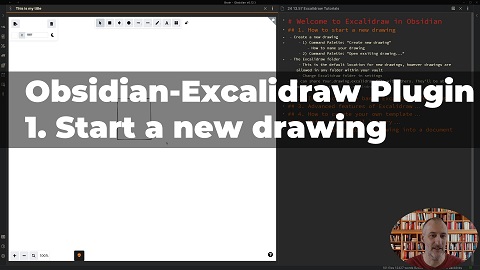
Part 2: Intro to Obsidian-Excalidraw - Basic features (6:06)

Part 3: Intro to Obsidian-Excalidraw - Advanced features (3:26)
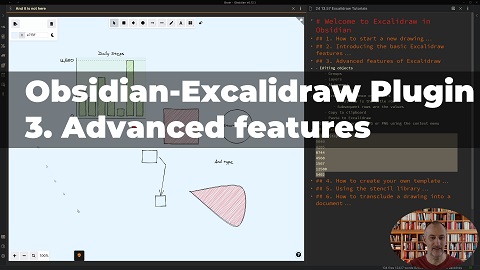
Part 4: Intro to Obsidian-Excalidraw - Setting up a template (1:45)
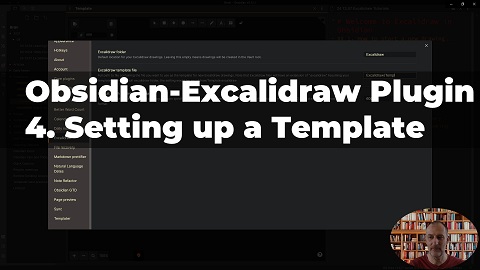
Part 5: Intro to Obsidian-Excalidraw - Stencil Library (3:16)
Part 6: Intro to Obsidian-Excalidraw: Embedding drawings (2:08)

Release Notes
1.1.10
- When you CTRL-Click a grouped collection of objects Excalidraw will open the page based on the embedded text.
- I added a setting to disable the CTRL-click functionality should it interfere with default Excalidraw behavior for you. In my experience double-clicking achieves the same outcome as a CTRL-click on an element in a grouped collection of objects, but if you use the CTRL-click feature to select an element of a group frequently, and find the "CTRL-click to open a link" feature annoying, you can now disable it.
1.1.9
- I modified the behavior of Excalidraw text element links.
- CTRL/META + CLICK a text element to open it as a link.
- CTRL/META + ALT + CLICK to create the file (if it does not yet exist) and open it
- CTRL/META + SHIFT + CLICK to open the file in a new pane
- CTRL/META + ALT + SHIFT + CLICK to create the file (if it does not yet exist) and open it in a new pane
- I added a setting to limit link functionality to
[[valid Obsidian links]]only. By default, the full text of a text element is treated as a link unless it contains a[[valid internal link]], in which case only the[[internal link]]is used. The new setting may be beneficial if you want to avoid unexpected updates to text in your drawings. This may happen if a text element in a drawing accidentally matches a file in your vault, and you happen to rename or move that file. By limiting the link behavior to[[valid internal links]]only, these accidental matches can be avoided. This is not frequent but happened to me recently. - LaTeX symbol support. I resolved issue #75 by adding a new command palette option ("Insert LaTeX-symbol") to insert an expression containing a LaTeX symbol or a simple formula. Some symbols may not display properly using the "Hand-drawn" font. If that is the case try using the "Normal" or "Code" fonts.
1.1.8
- Improvements to links
- You can now use square brackets to denote links. i.e. the text element
Which are my [[favorite books]]?will be a link tofavorite books.md. - Square brackets can still be omitted if the entire text element is an internal link. i.e. the following two text elements
Check out the [[requirements specification]]!!andrequirements specificationwill both represent a link torequirements specification.md. - When files are moved/renamed in your vault, text elements that are recognized links will also get updated in your drawings.
- I added a new command palette option to insert an internal link into a file in your vault to the active drawing. While a drawing is open press ctrl/cmd+p and select
Excalidraw: Insert link to file.
- You can now use square brackets to denote links. i.e. the text element
- I Added CTRL/CMD + hover quick preview for Excalidraw files
1.1.6
1.1.5
- The template will now restore stroke properties. This means you can set up defaults in your template for stroke color, stroke width, opacity, font family, font size, fill style, stroke style, etc. This also applies to ExcalidrawAutomate.
- Added settings to customize the autogenerated filename
- Minor fixes for occasional console.log errors.
1.1.0
- ALT+Enter and CTRL+ALT+Enter on the filename in edit mode will open up the Excalidraw editor. Click and CTRL+Click on the image in preview mode will also bring up the Excalidraw editor as expected.
- I have also added two new Command Palette commands. Both create a new drawing and immediately embed it in the document you are editing, one will open the drawing in a new workspace pane, the other within the currently active pane.
- Ozan's Image in Editor Plugin In a nice collaboration with Ozan, his Image in Editor plugin now supports Excalidraw. I recommend installing his plugin to display drawings also in Edit mode.
MIGRATION to 1.1.0
I have added a Migration command to the Command Palette. When you select this, the program will run a search and replace for all the excalidraw codeblocks in your vault and will convert them to the new format.
1.0.12 Freehand drawing
- now includes the new freehand drawing features from Excalidraw.com
- If you use Obsydian sync with Excalidraw sync, be sure to update all your devices to the new version, as the old excalidraw will simply delete the freehand drawn images and/or simply not show the drawing.
Temporary workaround - use it only if you are ok with hacky solutions
- I implemented a temporary workaround to enable Obsidian Sync for Excalidraw files. This enables almost real-time two-way sync between your devices. You can draw on your iPad with your pencil, on your Android with your stylus, and the image will be available in Obsidian as well and vice versa.
- By enabling this feature Excalidraw will sync drawings to a sync folder where drawings are stored in an ".md" file. This will allow Obsidian sync to synchronize Excalidraw drawings as well... Whenever your drawing changes, the corresponding file in the sync folder will also get updated. Similarly, whenever a file is synchronized to the sync folder by Obsidian sync, Excalidraw will sync it with the .excalidraw file in your vault.
- Because this is a temporary workaround until Obsidian sync is ready, I didn't implement extensive application logic to manage sync. Sync might get confused requiring some manual intervention.
QoL improvement
- I added an autosave feature. Your active drawing gets saved every 30 seconds if you've made changes to it. Drawings otherwise get saved when the window loses focus, or when you close the drawing, etc. Autosave limits the risk of accidental data loss on mobiles when you "swipe out" Obsidian to close it.
1.0.10
1.0.8 and 1.0.9 (minor fixes)

QoL improvements
- Adds context menu to File Explorer to create new drawings
- Adds a new command to the palette: “Transclude (embed) the most recently edited Excalidraw drawing”
- Automatically update file-links in transclusions when you rename or move your drawing
- Saves drawing and updates all active pre-views when drawing loses focus
- File is closed and removed when you select “Delete file” from more options
- Saves drawing when exiting Obsidian
- Fixes pen positioning bug with sliding panes after panes scroll
ExcalidrawAutomte full Templater and DataviewJS support
You now have ultimate flexibility over your Excalidraw templates using Templater and Dataview.
- Detailed documentation available here
- I created few examples from the simple to the more complex
- Simple use-case: Creating a drawing using a custom template and following a file and folder naming convention of your choice.
- Complex use-case: Create a mindmap from a tabulated outline.

1.0.6 and 1.0.7

SVG styling when embedding
- 1.0.7 adds further flexibility to styling
- new formatting option for the code block embedding
- Valid values:
left,right,left-wrap,right-wrap... but anything after the last|character will be added to the class of the SVG element and the wrapper DIV element. Here is the corresponding CSS:
img.excalidraw-svg-right-wrap {
  float: right;
  margin: 0px 0px 20px 20px;
}

img.excalidraw-svg-left-wrap {
  float: left;
  margin: 0px 35px 20px 0px;
}

img.excalidraw-svg-right {
  float: right;
}

img.excalidraw-svg-left {
  float: left;
}

div.excalidraw-svg-right,
div.excalidraw-svg-left {
  display: table;
  width: 100%;
}
Known issues
- I have seen two cases when adding a stencil library did not work. In both cases, the end solution was a reinstall of Obsidian. The root cause is not clear, but maybe because of the incremental updates of Obsidian from an early version.
- Mobile support
- Positioning of the pen gets misaligned after you open the command palette.
- Partially mitigated in 1.0.10 by the introduction of autosave: Your drawing will not be saved when you terminate the mobile app by closing the Obsidian task.
Resolved known issues:
- Resolved with 1.0.10 Temporary workaround:
- Sync does not support .excalidraw files. This issue will be addressed in a later release of Obsidian sync. Until then, you can use my temporary workaround.
- Resolved with Obsidian mobile 0.18:
- On mobile (iOS and Android): As you draw left to right it opens left sidebar. Draw right to left, opens right sidebar. Draw down, opens commands palette. So seems open is emulating the gestures, even when drawing towards the center.
Tips and tricks
- If you want to sketch in fullscreen, I recommend installing the Fullscreen Focus Mode plugin.
- Ozan's Image in Editor Plugin. In a nice collaboration with Ozan, his Image-in-Editor plugin now supports Excalidraw. I recommend installing his plugin to display drawings also in Edit mode.
Feedback, questions, ideas, problems
Join the conversation about the Excalidraw plugin on forum.obsidian.md
Please head over to GitHub to report a bug or request an enhancement.
Say Thank You
If you are enjoying Excalidraw then please support my work and enthusiasm by buying me a coffee on https://ko-fi/zsolt.
Please also help spread the word by sharing about the Obsidian Excalidraw Plugin on Twitter, Reddit, or any other social media platform you regularly use.
You can find me on Twitter @zsviczian, and on my blog zsolt.blog.