
7.2 KiB
◀ Excalidraw Automate How To
Introduction
Place your ExcalidrawAutomate Scripts into the folder defined in Excalidraw Settings. The Scripts folder may not be the root folder of your Vault.

EA scripts may be markdown files, plain text files, or .js files. The only requirement is that they must contain valid JavaScript code.

You will be able to access your scripts from Excalidraw via the Obsidian Command Palette.

This will allow you to assign hotkeys to your favorite scripts just like to any other Obsidian command.

Script development
An Excalidraw script will automatically receive two objects:
ea: The Script Enginge will initialize theeaobject including setting the active view to the View from which the script was called.utils: I have borrowed functions exposed on utils from QuickAdd, though currently not all QuickAdd utility functions are implemented in Excalidraw. As of now, these are the available functions. See the example below for details.inputPrompt: (header: string, placeholder?: string, value?: string)- Opens a prompt that asks for an input. Returns a string with the input.
- You need to await the result of inputPrompt.
suggester: (displayItems: string[], actualItems: string[])- Opens a suggester. Displays the displayItems, but you map these the other values with actualItems. Returns the selected value.
- You need to await the result of suggester.
Example Excalidraw Automate Scripts
Add box around selected elements
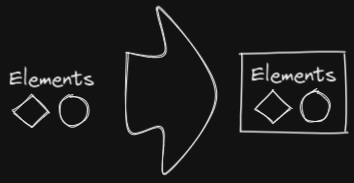
This script will add an encapsulating box around the currently selected elements in Excalidraw
//uncomment if you want a prompt for custom padding
//const padding = parseInt (await utils.inputPrompt("padding?","number","10"));
const padding = 10
elements = ea.getViewSelectedElements();
const box = ea.getBoundingBox(elements);
color = ea
        .getExcalidrawAPI()
        .getAppState()
        .currentItemStrokeColor;
//uncomment if you want to set the stroke to a random color
//color = '#'+(Math.random()*0xFFFFFF<<0).toString(16).padStart(6,"0");
ea.style.strokeColor = color;
id = ea.addRect(
	box.topX - padding,
	box.topY - padding,
	box.width + 2*padding,
	box.height + 2*padding
);
ea.copyViewElementsToEAforEditing(elements);
ea.addToGroup([id].concat(elements.map((el)=>el.id)));
ea.addElementsToView(false);
Connect selected elements with an arrow
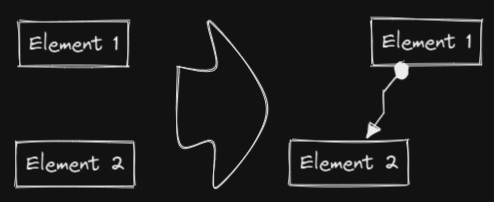
This script will connect two objects with an arrow. If either of the objects are a set of grouped elements (e.g. a text element grouped with an encapsulating rectangle), the script will identify these groups, and connect the arrow to the largest object in the group (assuming you want to connect the arrow to the box around the text element).
const elements = ea.getViewSelectedElements();
ea.copyViewElementsToEAforEditing(elements);
const groups = ea.getMaximumGroups(elements);
if(groups.length !== 2) return;
els = [
  ea.getLargestElement(groups[0]),
  ea.getLargestElement(groups[1])
];
ea.connectObjects(
  els[0].id,
  null,
  els[1].id,
  null,
  {numberOfPoints:2}
);
ea.addElementsToView();
Set line width of selected elements
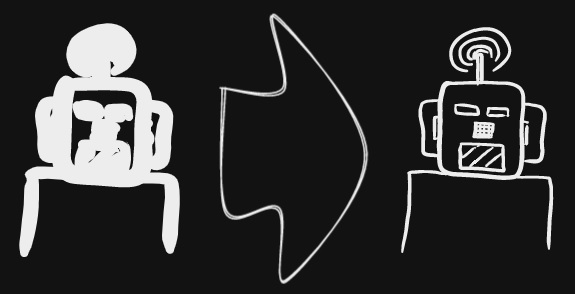
This is helpful, for example, when you scale freedraw sketches and want to reduce or increase their line width.
let width = (ea.getViewSelectedElement().strokeWidth??1).toString();
width = await utils.inputPrompt("Width?","number",width);
const elements=ea.getViewSelectedElements();
ea.copyViewElementsToEAforEditing(elements);
ea.getElements().forEach((el)=>el.strokeWidth=width);
ea.addElementsToView();
Set grid size
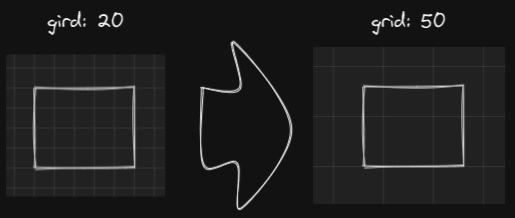
The default grid size in Excalidraw is 20. Currently there is no way to change the grid size via the user interface.
const grid = parseInt(await utils.inputPrompt("Grid size?",null,"20"));
const api = ea.getExcalidrawAPI();
let appState = api.getAppState();
appState.gridSize = grid;
api.updateScene({
  appState,
  commitToHistory:false
});
Set element dimensions and position
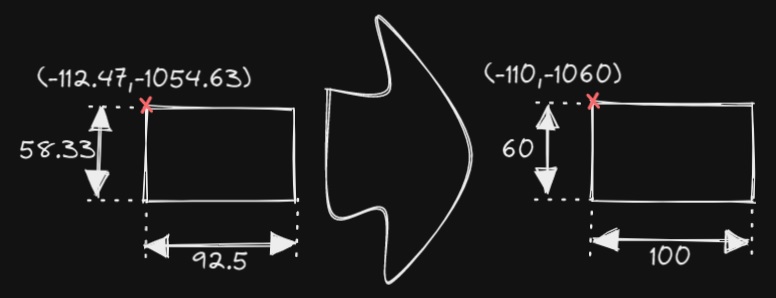
Currently there is no way to specify the exact location and size of objects in Excalidraw. You can bridge this gap with the following simple script.
const elements = ea.getViewSelectedElements();
if(elements.length === 0) return;
const el = ea.getLargestElement(elements);
const sizeIn = [el.x,el.y,el.width,el.height].join(",");
let res = await utils.inputPrompt("x,y,width,height?",null,sizeIn);
res = res.split(",");
if(res.length !== 4) return;
let size = [];
for (v of res) {
  const i = parseInt(v);
  if(isNaN(i)) return;
  size.push(i);
}
el.x = size[0];
el.y = size[1];
el.width = size[2];
el.height = size[3];
ea.copyViewElementsToEAforEditing([el]);
ea.addElementsToView();
Bullet points
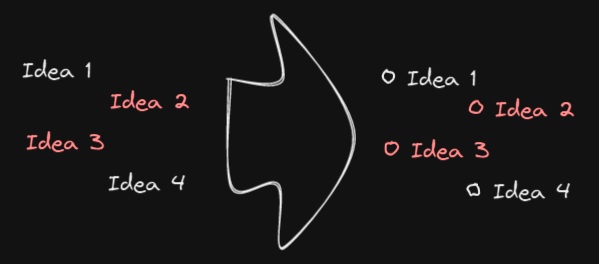
This script will add a small circle to the top left of each text element in the selection and add the text and the "bullet point" into a group.
elements = ea.getViewSelectedElements().filter((el)=>el.type==="text");
ea.copyViewElementsToEAforEditing(elements);
const padding = 10;
elements.forEach((el)=>{
  ea.style.strokeColor = el.strokeColor;
  const size = el.fontSize/2;
  const ellipseId = ea.addEllipse(
    el.x-padding-size,
    el.y+size/2,
    size,
    size
  );
  ea.addToGroup([el.id,ellipseId]);
});
ea.addElementsToView();
Split text by lines
!!!Requires Excalidraw 1.5.1 or higher
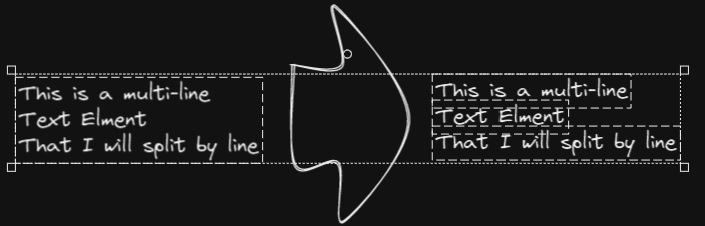
Split lines of text into separate text elements for easier reorganization
*/
elements = ea.getViewSelectedElements().filter((el)=>el.type==="text");
elements.forEach((el)=>{
  ea.style.strokeColor = el.strokeColor;
  ea.style.fontFamily  = el.fontFamily;
  ea.style.fontSize    = el.fontSize;
  const text = el.text.split("\n");
  for(i=0;i<text.length;i++) {
	ea.addText(el.x,el.y+i*el.height/text.length,text[i]);
  }
});
ea.addElementsToView();
ea.deleteViewElements(elements);